My passport had expired and I had to re-apply for a new passport. The last time I applied was through a travel agent, but this time I decided to apply for one myself. This article was borne out of my experience dealing with the Passport Seva website.
As with most governmental website, this one too takes a beating with poor UI and UX.
Once you click the Login button on the homepage, you’re taken to the login screen:
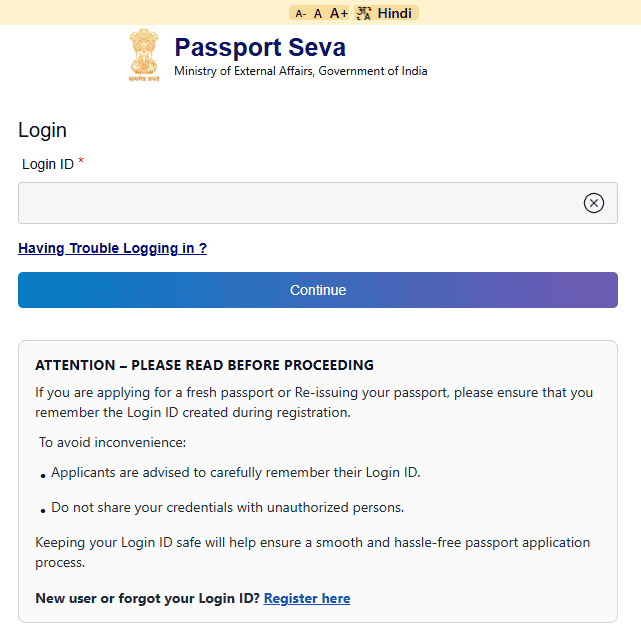
After typing in your Login ID and clicking Continue, you’re taken to yet another login screen:
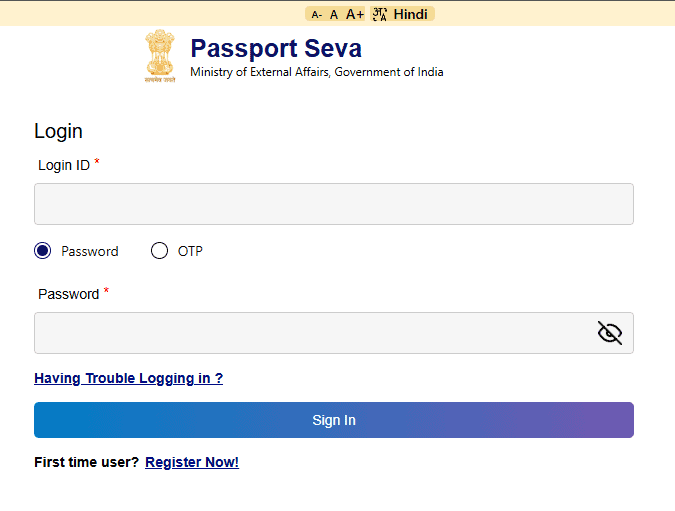
There are a couple of issues here:
- The Login ID field is cleared and the user now needs to type it in again. Since the user has already provided their login ID on the previous page, it should simply have carried over to save the trouble of retyping their ID.
- Why was there a need to separate the password field from the previous page? The system could have easily asked for the Login ID and the password on the first page itself. This becomes especially apparent when the Login ID field has to be populated again.
- The Password and OTP radio buttons are relatively closer to the Login ID field, which threw me off for a second. Since I was directed to this page AFTER I filled in my login ID on the previous page, I immediately assumed that this field (i.e. the Login ID field on the second page) is the password field and was ready to type in my password. This is poor form design, as some people may not catch themselves in time and inadvertently expose their passwords in the Login ID field (assuming they’re filling in the Password field instead).
The Welcome Screen
As soon as you log in, you’re welcomed by a page asking for some details:
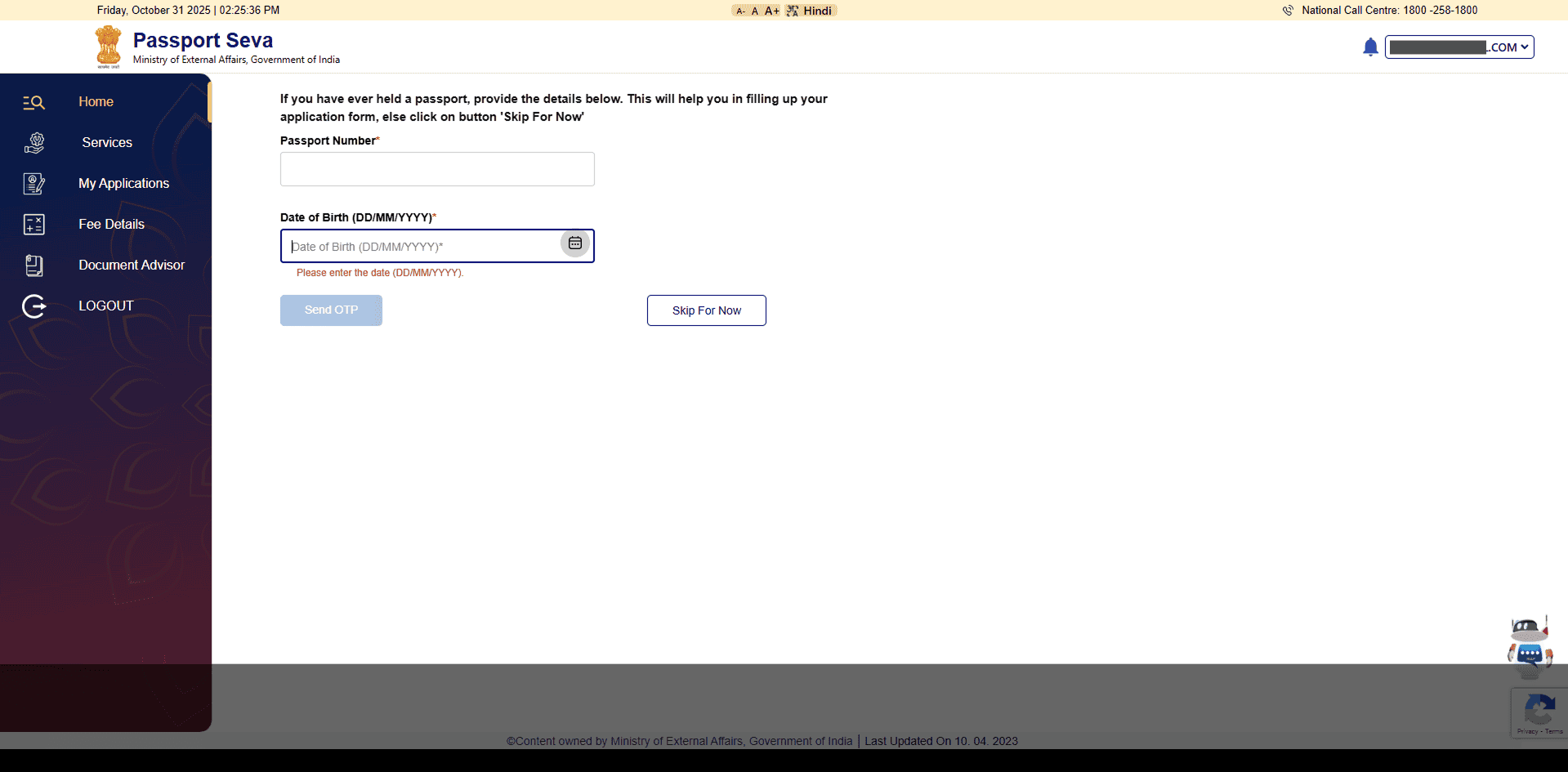
You fill in your passport number and your date of birth. Then ask for an OTP confirmation; or you can also skip to move forward. The Date of Birth field especially is interesting because the label, placeholder and the error text are almost exactly the same.
They could have provided a fictitious date as an example, as a description below the label. I’m not a fan of placeholder text as they disappear as soon as you click inside the field – so providing an example there wouldn’t really be of much help.
Once you fill in the details and move ahead, you’ll proceed to the following page. I was greeted by a large red server error message. Bummer.
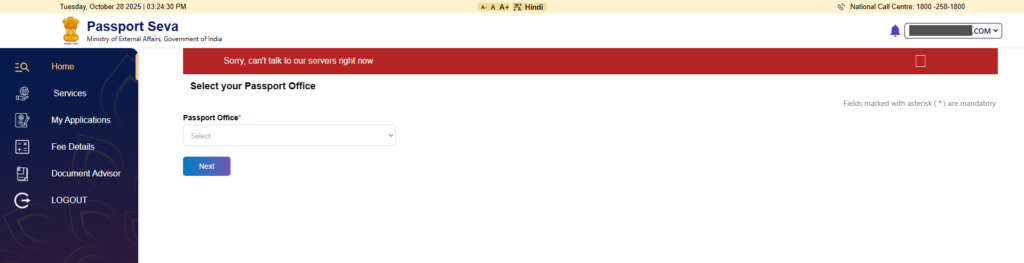
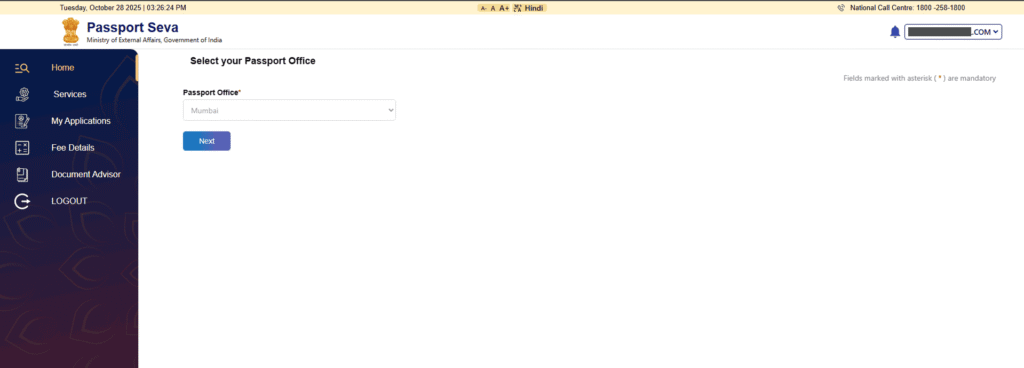
The dropdown for ‘Passport Office’ gets auto-populated (probably picking up details from the Passport Number provided in the previous step). However, the dropdown itself is not clickable. It looks like a dropdown, but doesn’t behave like one.
The page title says ‘Select your Passport Office’ however the dropdown remains un-selectable. I’m struggling to understand why they wouldn’t let users select a passport office of their choice.
Also notice the instruction ‘Field marked with asterisk (*) are mandatory’ on the far right of the page. These are unnecessary extra pixels on screen, given that the dropdown field is the only field on the page, and users do not have a way to select their desired options.
You’re then asked for your Given Name and Surname (i.e. Last Name). However, the note that stretches across both the fields is applicable only for the Given Name. As such, it would have made more sense to add a description under the label, as this finds itself in a strange spot below the two fields – a note that users may read after filling in the field and may want to go back and edit it again.
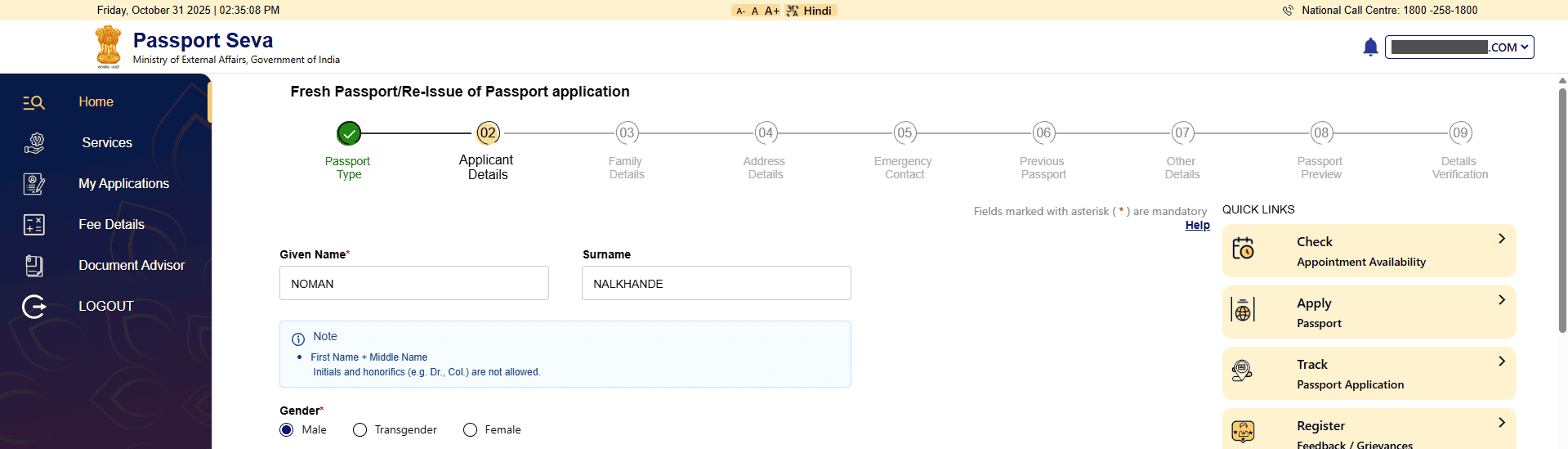
The Note:
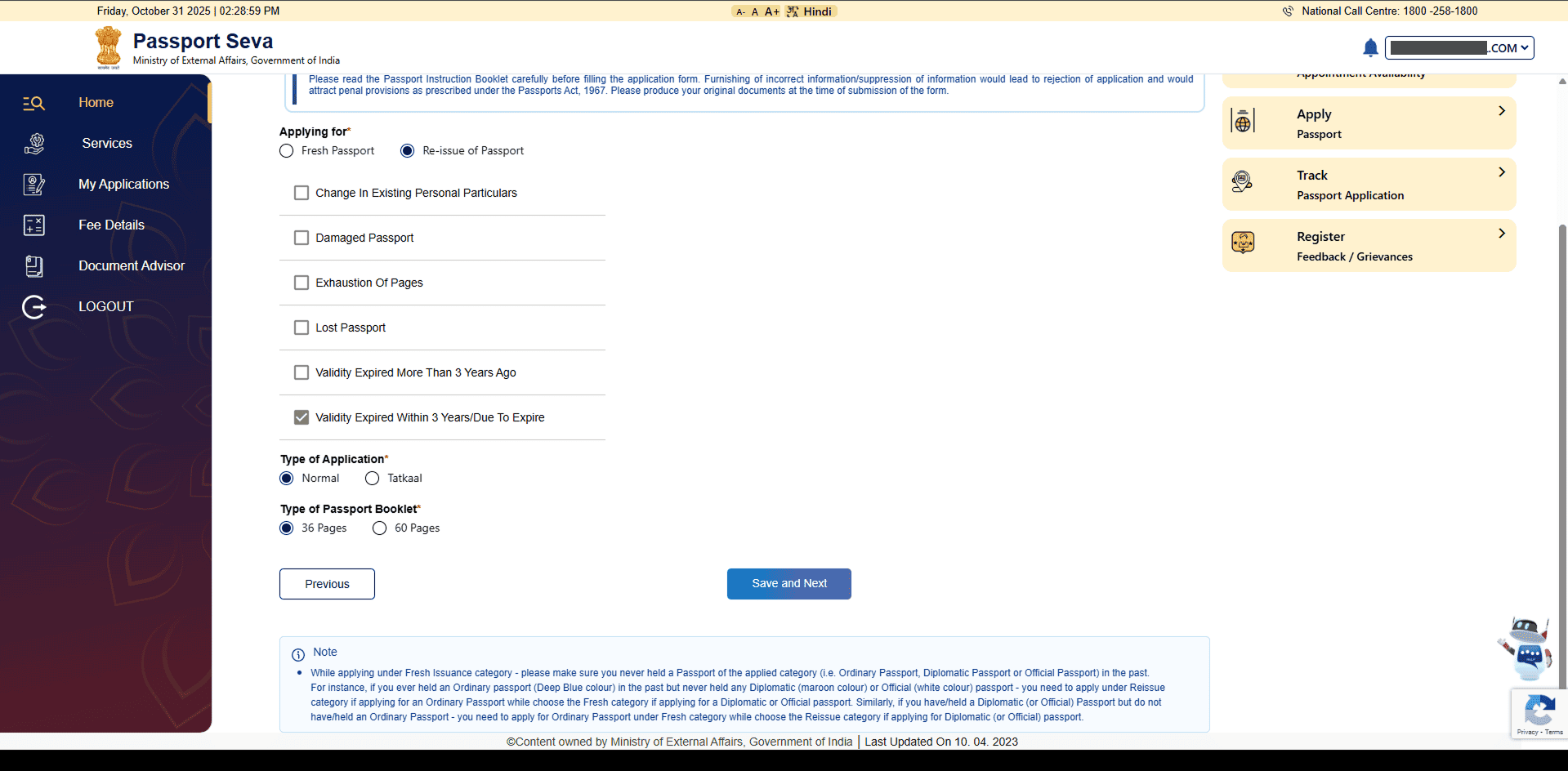
Once you’ve filled in the required details, scroll down to click on ‘Save and Next’ button; you will then see a note sitting right at the bottom of the screen. The placement of the note is strange as it relates to the first question ‘Applying for’. The system is providing users important information, however it does so AFTER a user has already filled in all the fields on the page.
It would have been appropriate to have a concise note right ABOVE the field it brings into question.
File Number:
As you proceed with the form, you come across a page asking for details of your previous passport (if you had one):
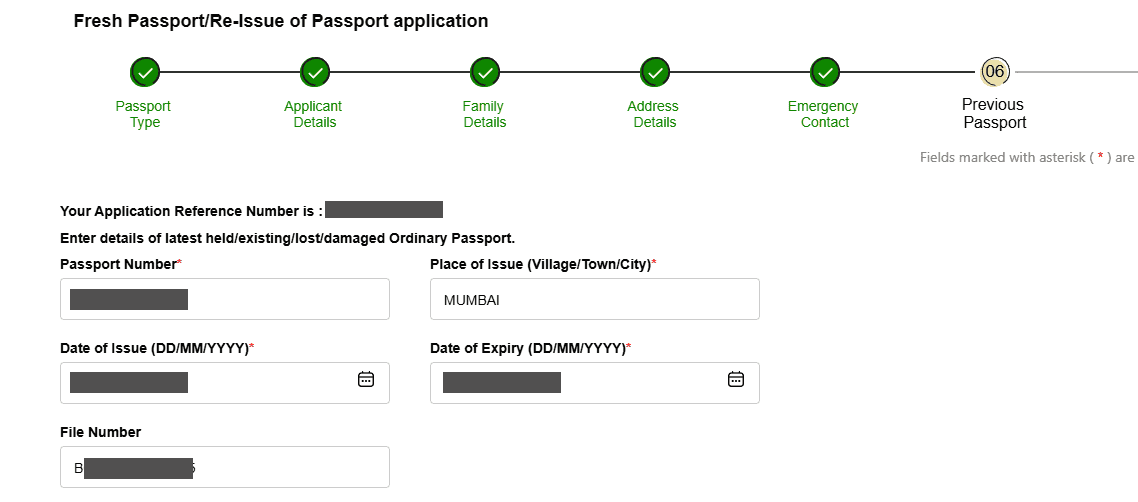
There’s a field called File Number and it was already populated for me. When I see a field with an official number in it, it is already assumed that this number is a special number reserved for a reason (tracking passport records, account, application process etc).
I did not expect this field to be editable but it was! I could edit the field and make changes to it – which was a huge lapse in the design. It’s been many months since I went through this process, but I don’t think the file number mattered while filling in the application process or after that either. If this is indeed true – then it doesn’t help show the field at all, if the number is used for internal purposes.
Last Screen:
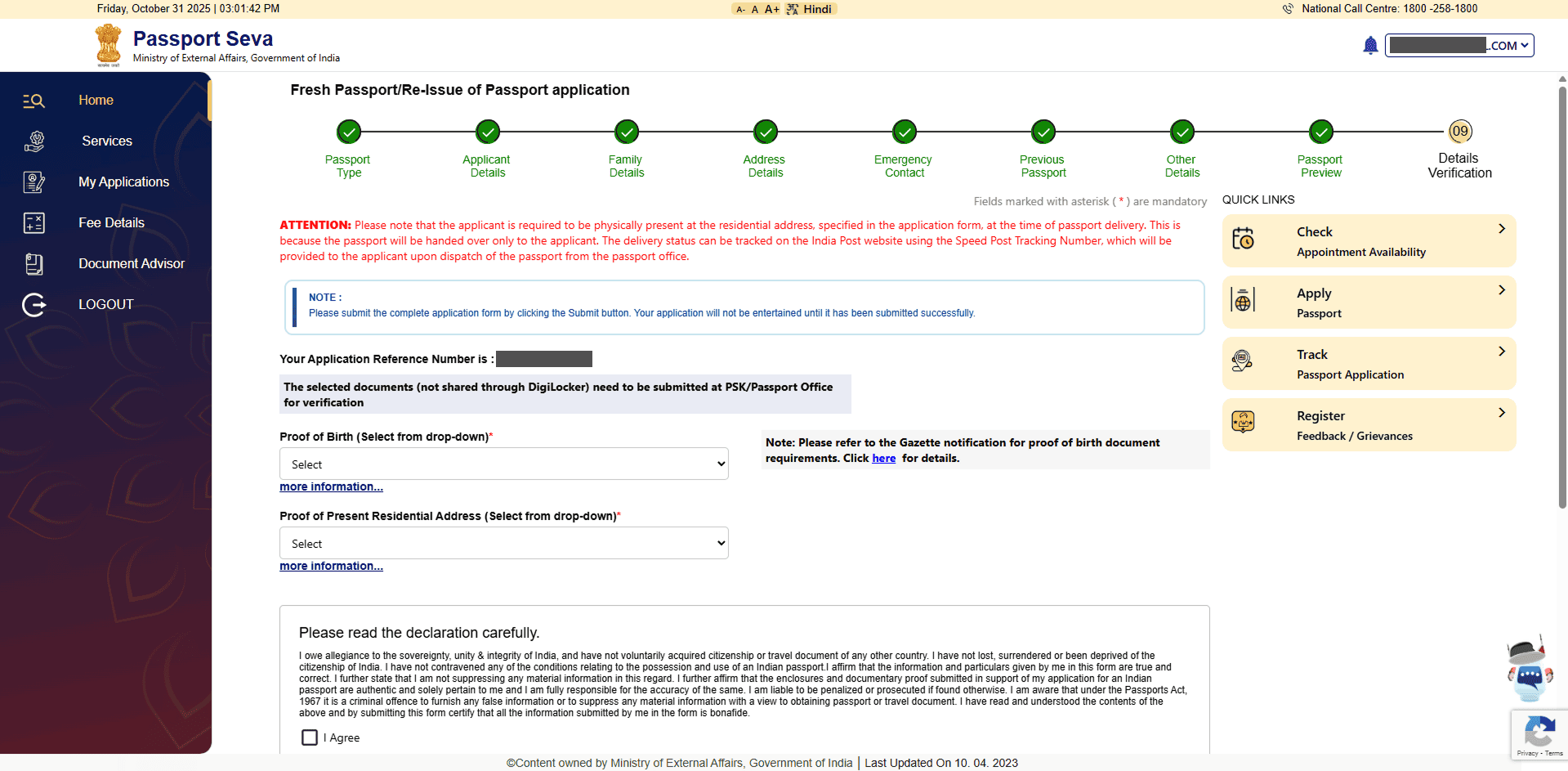
This is one of the final screens in the application process. As you can see, it is incredibly crowded with information. There’s red text begging for your attention, a note underneath it, a few fields, a few links on the right, and finally another note of declaration at the bottom.
That’s a lot to take in. A lot to read. A lot to process.
And when you decide to muster up the courage to get done with the page, clicking a dropdown reveals these gigantic dropdown field:
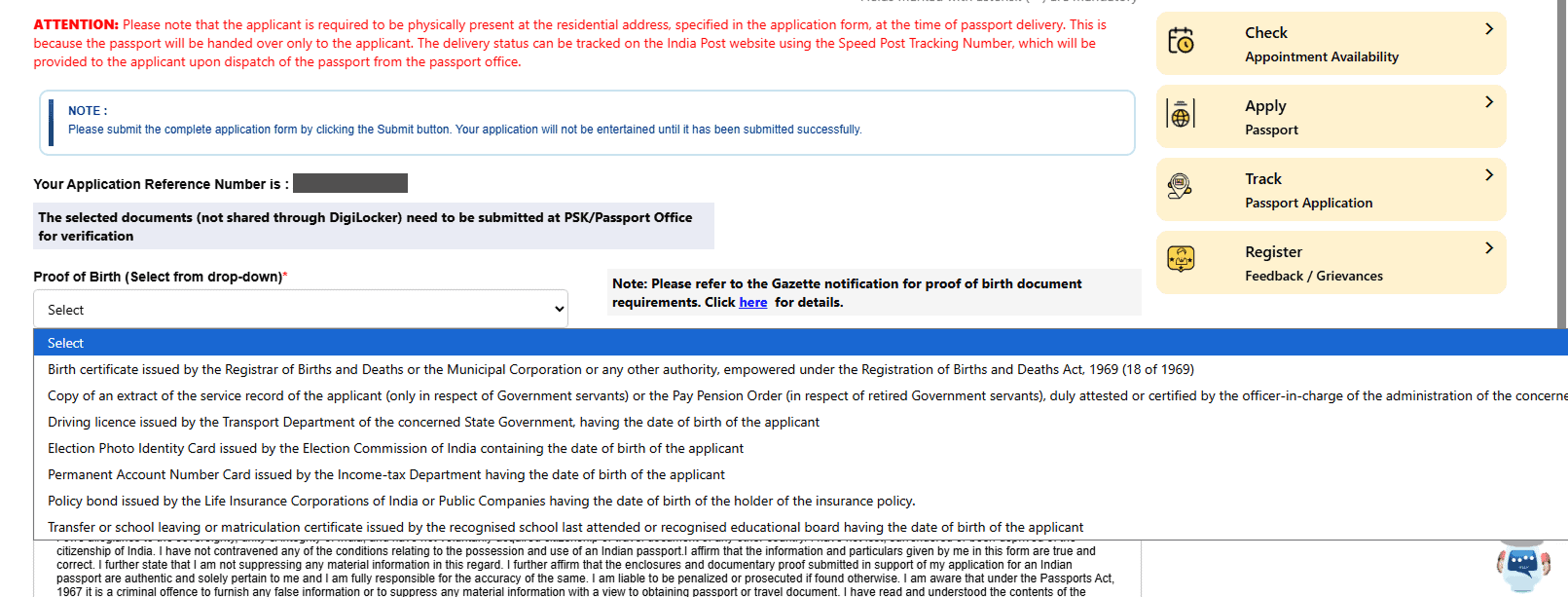
They stretch up the entire width of the page! I’ve never seen dropdowns this massive and was ridiculously frustrating to read the options in one lonnnggg line.
That’s all for this article. I did manage to get my passport re-issued. Many thanks to God, I don’t have to revisit this website for the forseeable future.