Reimagining MediaPlace: A Smarter Way to Save & Rediscover Bookmarks
Role
Platform
Project time-length
Tools used
The Challenge
MediaPlace is a desktop DAM (Digital Asset Management) tool, that includes an internal web browser that allows users to capture digital bookmarks instantly. However, the legacy bookmarking system functioned as a flat, unorganized list of raw URLs that were saved with no feedback and without visual context or search capabilities.
As a user’s library grew, it became a data graveyard where finding specific assets was nearly impossible. Because the system lacked any form of privacy or categorization, sensitive bookmark resources and links were left exposed, creating a security risk in shared or collaborative environments.
This led to significant user frustration, decreased productivity, and a lack of trust in the tool’s ability to handle links securely.
Problem Statement
How might we design a seamless end-to-end bookmarking experience for MediaPlace – from frictionless capture to a highly visual, searchable, and organized bookmarking system that allows users to manage assets efficiently while ensuring sensitive data remains secure?
To solve this, I focused on three distinct areas of the user journey:
1. Frictionless Capture (i.e. the addition of a new bookmark)
The Goal: Transform saving a bookmark from a passive background task into a high-feedback interaction.
Proposed idea: To design a workflow that uses color-coded success states to provide immediate confirmation and a sense of task completion, while maintaining a high degree of efficiency.
2. Visual Recognition (i.e. the anatomy of a bookmark card)
The Goal: Eliminate “scrolling fatigue” transforming the wall of URLs into visually appealing assets to make links instantly identifiable.
Proposed idea: After studying other popular tools, I settled on familiar design – bookmark cards that prioritize site previews, essential metadata, and editing capabilities.
3. Selective Privacy (i.e. security of a folder/category)
The Goal: Provide a safe space for sensitive work without complicating the whole app.
Proposed idea: To introduce some kind of authentication, allowing users to protect either specific categories or individual bookmarks. This ensures that even in public spaces or during screen-shares, private data remains hidden.
Before we take a deeper dive into each of the 3 areas, let’s look at the information architecture of current bookmarking experience in MediaPlace:
Feature | Old design |
|---|---|
Layout | Single column list |
Mental model | Browser history |
Visuals | Raw text |
Structure | Flat (no hierarchy) |
Search speed | Low (manual scrolling) |
Context for bookmark | None |
Privacy | Zero |
The Addition of a New Bookmark
Before introducing the redesigned flow for adding a new bookmark, it’s important to examine the existing bookmarking experience.
a) From the web browser page
The user is on the web browser page, and wants to bookmark a URL. But the current process is both limited and unclear.

At first glance, it’s ambiguous whether clicking the Bookmarks button will save a bookmark or open the bookmark manager – an interaction that lacks clear affordance and creates unnecessary confusion.
In practice, the button opens the bookmark manager, as shown below.

Once it is opened, the user can then add the URL as a bookmark.
To address this confusion and improve overall usability, I designed a more intuitive and user-centered solution.
I designed a seamless transition between browsing and managing by introducing a dual-action control center located directly in the browser’s utility bar. Here is how it looks:

The “One-Click” Capture
To reduce cognitive load, the “Save as bookmark” button acts as an immediate trigger.
• Efficiency: Users don’t have to navigate through menus on the left, or open a modal to save a resource.
• Visual Continuity: Placing it next to the address bar ensures that the “Save” action is always in the user’s line of sight while they are viewing a page.
The “Management” Gateway
The “Open bookmark manager” button serves as the bridge to the advanced features located in a dedicated bookmark manager.
• Contextual Navigation: By separating the “Save” action from the “Manage” action, I avoided cluttering the browser UI while giving users a dedicated workspace to organize, tag, and categorize their links.
• Dedicated Workspace: Clicking this takes the user to a bookmark manager where the grid/list views, categories, and tags and other settings live.
However, this is not the only method for saving a bookmark. Users can also add bookmarks directly within the bookmark manager itself. When a user is already in the bookmark manager and wants to save a new URL, the current flow becomes inefficient. It requires navigating back to the web browser page, entering the URL, saving it as a bookmark, and then returning to the bookmark manager to continue managing bookmarks.
This fragmented workflow introduces unnecessary context switching and friction, reducing overall efficiency and usability.
b) From within the bookmark manager
Introducing the + New Bookmark button
This button lives directly in the bookmark manager, so users can easily add a bookmark without leaving this area of the app. This is a seamless workflow for users who simply want to add multiple bookmarks without opening the actual page in the browser window.
Let’s go over the design iterations for the button and the decisions it took to conclude one:
Iteration 1:

The Interaction: Clicking “+ New Bookmark” triggered a downward slide, revealing a URL input field directly above the menu and content area.
The Friction: While it kept the user in context, it caused a significant layout shift. By pushing the entire bookmark gallery downward, it momentarily disoriented the user’s visual anchor point.
Since it is a pretty jarring experience, it was a very easy no for me to take it any further.
Iteration 2:

The Interaction: This iteration builds on the first by refining the behaviour. Rather than revealing the input field beneath the button, it introduces a popup overlay positioned below it, containing both the input field and the save button.
The Friction: Although this approach does away with the abrupt layout shift from the previous version, the overlay’s placement introduces new issues. Because it obscures both the menu bar and the page title, users may accidentally interact with menu items beneath it. It also removes the ability to quickly verify the page title, which is important for confirming that a bookmark is being added to the correct category.
Overall, this interaction still doesn’t feel right.
Iteration 3:

The Interaction: This iteration builds on the popup concept from the previous version. Clicking the “+ New Bookmark” button opens a modal that overlays the entire bookmarks area.
The Friction: While this approach feels visually cleaner than the previous hanging overlay – and the dimmed background helps focus attention on the task at hand – it introduces usability concerns given the nature of the app.
Modals are inherently “heavy” – they interrupt user flow, and in a high-productivity tool like MediaPlace, users are unlikely to want to repeatedly open and dismiss windows. Also, because the modal covers nearly the entire content area, it completely hides the user’s existing library of bookmarked cards, removing any useful context.
Iteration 4:

The Interaction: Clicking the “+ New Bookmark” button reveals an input field that slides out from the right within a fixed container.
What Works Well: Because there’s no modal or page transition, users remain in context. The interaction uses progressive disclosure, revealing the URL field only when needed, and establishes clear cause and effect: clicking the button directly exposes the next required step.
The Friction: While this approach works well overall, some ambiguity remains. The sliding motion may not immediately communicate that this is a new state of the same action, and the slide-out itself can feel temporary – more like a transient UI element than a form that expects completion.
More importantly, the button does not change state: it continues to read “+ New Bookmark” and retains the appearance of a clickable CTA, even though the user is already in that action.
The Final Design:

High-contrast state transition: In the final version, I moved away from a static expansion to a dynamic, color-coded workflow. It is a state transformation, not an attachment.
The interaction: When the user clicks “+ New Bookmark” the button expands into a container, with a brand-consistent purple. This draws the user’s attention, as the button morphs itself into an input field and a save button beside it. The focus state and a blinking cursor immediately signal that the system is ready for input.
The “success” state: This is a significant improvement. Upon hitting “Save,” the save button transforms into a green “Saved” state complete with a checkmark.
UX Benefit: This provides instant positive reinforcement. In the previous version, the input just disappeared, leaving the user to look down at the list to verify the save. Now, the confirmation happens exactly where the user’s eyes are already focused. The green checkmark provides “psychological closure” – the user knows the task is 100% complete without needing to scan the list for the new entry.
I decided to finalize this version because:
a) It preserves spatial continuity: The input appears exactly where the button was (not above it, not overlaying it, not offsetting it). The user’s eye doesn’t move from the place.
b) It preserves the visual DNA: The input inherits the visual traits of the main button. It has the same height, same radius, similar padding etc. It expresses that ‘it is the same thing but in a different state’
c) It animates as a morph, not a swap. The main CTA button doesn’t instantly vanish, nor does the input appear from nowhere. The animation morphs itself nicely into an input field.
d) It looks like a stable form container, not a temporary dismissible slide-out UI attachment.
e) It neither obscures the content below, nor does it cause any jarring layout shift.
The Anatomy of a Bookmark Card
The current bookmarking experience in MediaPlace saves each bookmark as a simple URL. Over time, it looks like a giant wall of text:

Imagine scrolling through hundreds of links with your eyes peeled out, to find the one you’re actually searching for. That’s a horrible experience I wouldn’t want for my enemy.
In a DAM (Digital Asset Management) environment like MediaPlace, users are often looking for visual assets, so the links must be more than just text. They ought to be visual cues too.
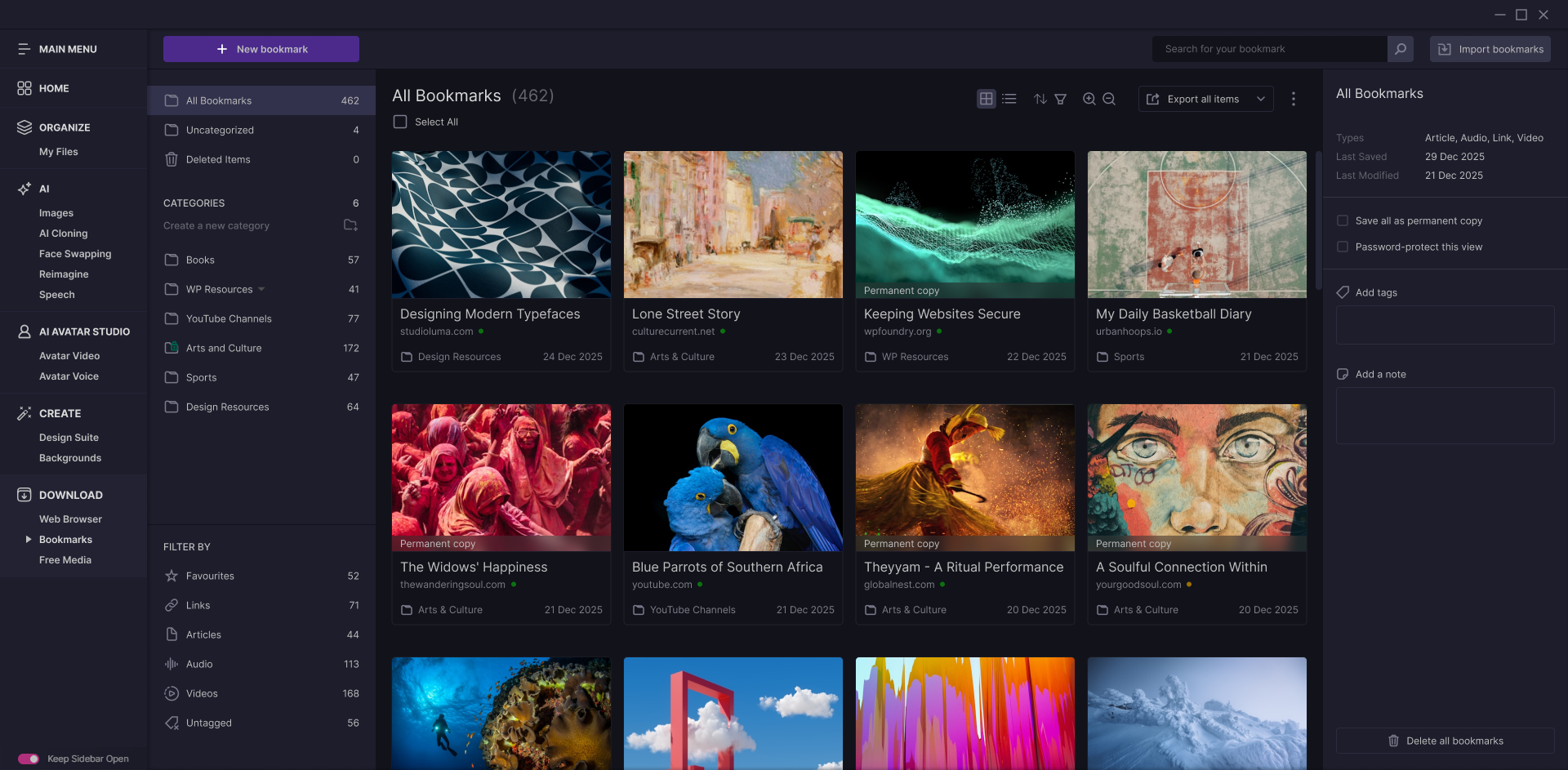
In the redesign, instead of relying on text alone, I redesigned each bookmark as a rich media card for rapid recognition.
I didn’t arrive at the final card layout immediately. It took three distinct stages of iteration to balance the needs of a visual card with the requirements of a high-utility management tool.
Let me walk you through the design iterations for the card below.
Iteration 1: The text-heavy approach

Layout: Focused on the page title and URL with a small favicon.
The Flaw: I felt the favicon will balance out the text on the card, but it felt too much like the original list. Users still had to read to find what they wanted, which slowed down the discovery process.
Idea discarded.
Iteration 2: The visual-only approach

Layout: Large site preview image with the title overlaid on top.
The Flaw: While it looked beautiful, it lacked context. Users often have multiple bookmarks from the same site, and without a way to categorize them, they couldn’t distinguish between them at a glance.
Iteration 3: The break-through card

Layout: I settled on a layout that treats a bookmark like a professional asset. Every element serves a specific purpose for a busy user.
Site Preview Image: Provides instant visual recognition.
Page Title: The primary identifier.
Truncated URL: Offers source verification without cluttering the card.
Date Stamp: A vital reference for users to assess freshness of the cards and maintain them.
Final Design: The contextual-asset card

Layout: This design amplifies what is previously built in the 3rd iteration. I was overall happy with the previous design but it lacked a few essentials.
Category: I decided to display the category to show where the link is filed (example: Uncategorized or Sports category). It creates a sense of organization and helps users realize if a bookmark is currently “Uncategorized” and needs to be moved to its relevant category.
Status indicator: An indicating dot that comes in 3 colours – green, orange and red – to denote if MediaPlace is able to locate the bookmark at the URL. This is particularly important because a website may change the domain, redirect to someplace else, or either be temporarily unavailable or permanently taken off the web.
Green status: Bookmark is alive at the URL it was fetched from. All’s well.
Orange status: For various reasons, MediaPlace is unable to locate the bookmark at the URL. It could be a temporary glitch, or a soft redirect etc., that’ll provide a heads-up to the user to look into it, if they want.
Red status: Bookmark not available at the URL (such as page not found etc). The user can decide if they want to keep the bookmark, or remove from the system as a maintenance practice.

I did not leave a static card just for viewing – a professional tool needs to be interactive. I designed a ghost overlay that appears on hover to keep the UI clean while providing instant editing capabilities.
On-hover actions:
• Selection Checkbox: allows for bulk actions (moving or deleting multiple cards at once, validating links etc).
• Quick Preview: a time-saver button that lets users peek at a stripped-down version of the content without leaving the manager or opening a new tab.
• Edit Button: the gateway to the right-side panel, where users can dive deeper into tags, notes, and other settings such as moving to a different category, setting up reminder etc.
Design Rationale: By hiding these actions until hover, I reduced visual noise. The user can scan their library peacefully, but the moment they need to act, the tools are right under their cursor.
Selective Privacy
MediaPlace is a desktop application, and has the ability to save bookmark links, but it lacks a way to segregate general-purpose links from personal or sensitive ones. In a shared or open office environment, the user runs the risk of exposing sensitive links to anyone glancing at the screen.
A way to address this, is to create a secure repository where users can not only organize their links but also gate-keep sensitive information behind a layer of authentication. Therefore, they don’t have to lock the entire app; they can choose specifically which categories (e.g., “Client Confidential” or “Financials”) require a password.
However, during the ideation phase for this feature, I debated between individual bookmark locking and category-level encryption. I chose Category-Level Protection for three reasons:
• Efficiency: It allows users to secure entire category (e.g., “Client Confidential”) in one click rather than managing dozens of individual passwords.
• Reduced cognitive load: It eliminates “password fatigue” by allowing users to unlock a workspace once and browse freely within it. It is much easier to remember one password, than to recall many individual ones.
• Cleaner interface: Individual bookmark locking would introduce visual clutter – potentially hundreds of lock icons competing for attention. Category-level protection keeps the UI clean and focused.
Let’s go through some design iterations and decisions to lock this down (no pun intended!):
Iteration 1: Toggle + Modal

Since this was a category-wide encryption, it only made sense to make the feature available when a category is clicked. I initially designed a password-protect toggle that sits in the right-side panel – which upon clicking, opens a modal that a user can set their password.
The Friction: A toggle is generally for instant action that take effect immediately. Since the user can’t just turn the security feature on without first creating a password, a toggle did not fit the use case here well.
Also, a modal felt too heavy for a relatively simple action and therefore I dismissed this design iteration after slight deliberation.
Iteration 2: Checkbox + Inline input

In the second iteration, I replaced the toggle with a checkbox and removed the modal in favor of an inline password input field placed directly below it. When users checked the box, they could immediately enter a password to protect the category.
The Friction: While it does work to some extent, there were some layout issues with this design. The password input field need not be visible at all times, as a user may simply not want to password-protect a category all the time. Having a persistent input field when not needed, adds to unnecessary visual noise.
Iteration 3: Progressive disclosure

To address the layout concerns, I introduced progressive disclosure. The password input field is hidden by default and only appears when the user checks the “Password Protect” checkbox.
This approach feels balanced because the interface remains clean and uncluttered; and users are guided through the action only when they want to opt into it.
The Friction: While this iteration worked well for enabling protection, it revealed a new issue: there was no clear way for users to remove an existing password. This insight informed the final design iteration.
The Final Design:

The final iteration builds directly on the strengths of Iteration 3.
When a user selects the “Password Protect” checkbox, the previously hidden password input field is revealed. As soon as the user enters a password, the Save Password button becomes active. This button includes a downward-facing caret, signaling the presence of additional actions.
Clicking the caret reveals a secondary Delete Password option. This allows users to either:
• Save the newly entered password, or
• Clear/remove the password immediately – or at a later time -without leaving the context of the field settings.
Once the user clicks Save Password, the system provides immediate and reassuring feedback. The button label updates to “Password Saved,” and a green lock icon appears to visually confirm that the category is now secured. A lock icon appears alongside the category in the sidebar, providing visual feedback and helping users quickly distinguish password-protected categories from regular ones.
When a user tries to visit a locked-category, they’re met with the following screen – asking for their password to gain access:

Before we wrap up, let’s update the information architecture for our redesigned app:
Feature | Old design | Redesign |
|---|---|---|
Layout | Single column list | Flexible grid / list toggle |
Mental model | Browser history | Managed digital assets |
Visuals | Raw text | Rich media card |
Structure | Flat (no hierarchy) | Categories and sub-categories |
Search speed | Low (manual scrolling) | Global search, sorting, filtering |
Context for bookmark | None | Tags, Note, Metadata |
Privacy | Zero | Password-protected categories |
Potential Business Impact
While this was a conceptual redesign, the following metrics represent the anticipated business value for a platform like MediaPlace:
1. Increased User Retention
• The Design: The new “+ New Bookmark” flow and Smart Cards.
• The Business Outcome: By transforming a “junk drawer” into an organized, visual library, the tool becomes an essential part of the user’s daily workflow.
• Metric: A reduction in Churn Rate, as users are less likely to switch to a competitor if their entire bookmark library is expertly managed within MediaPlace.
2. Feature Adoption & Engagement
• The Design: The Right-Side Contextual Panel and Tagging, Notes System.
• The Business Outcome: A more intuitive interface encourages users to interact with the app more frequently.
• Metric: An increase in Daily Active Users (DAU) and “Average Session Duration,” as the app evolves from a simple browser-list into a robust bookmarking hub.
3. Market Differentiation (Security as a USP)
• The Design: Category-Level Password Protection.
• The Business Outcome: Security is a major pain point for all users. Offering privacy by design, allows MediaPlace to market itself as a “Professional Vault,” distinguishing it from generic bookmarking tools.
• Metric: Higher Conversion Rates from free to premium tiers by gating advanced security features for professional users.
4. Improved User Efficiency (Time-to-Value)
• The Design: Visual Retrieval and Quick Preview hover actions.
• The Business Outcome: Reducing the time it takes for a user to find an asset increases overall user satisfaction.
• Metric: Higher Net Promoter Score (NPS), as users perceive the tool as a time-saver.
Conclusion
Even as a personal project, the goal was to align UX improvements with tangible business goals. By solving for Capture, Organization, and Security, we aren’t just improving the UI; we are building user trust, increasing platform stickiness, and creating a clear competitive advantage in the bookmarking tool market.