ProxiedMail: Redesigning Email Alias Management to Reduce Friction
Role
Platform
Project time-length
Tools used
Project Overview
ProxiedMail is a privacy-first web application that allows users to protect their real email addresses by using proxy emails (i.e. aliases) and custom domains.
The legacy ProxiedMail interface was built with a system-centric logic that prioritized data storage over user workflow. This resulted in a cluttered dashboard and a confusing email management table that lacked hierarchy, making it difficult for users to quickly generate aliases or manage them at scale.
Problem Statement
How can we turn ProxiedMail’s cluttered, system-focused interface into a simple, easy-to-use tool that makes creating aliases quick, and helps users manage their digital privacy over time in an organized and scalable way?
Design Objectives
- Reduce time-to-task: Enable users to generate a proxy email in just a few clicks, without sacrificing access to advanced features.
- Restore visual order: Bring clarity to the UI by replacing visual chaos with a thoughtfully structured, card-based layout.
- Scalable management: Introduce robust search, filtering, and progressive disclosure for advanced features.
Let’s start by talking a bit about the current dashboard design when a user logs in.
1. Old Dashboard Design

The UX audit of the current state
As you can see, the current design of the dashboard has everything thrown on a single page (you see instructional text when expanded, notification for 2FA, and creation and management of email aliases). This follows a broken mental model of monitoring vs maintenance on a single page.
A dashboard should be for monitoring (answering a user’s question: what is happening now), but the current design forces it to be for maintenance (how do I fix/change this) too.
Based on the screenshot, we can identify a few UX red flags:
1) The Wall-of-text issue: The Brief Information section uses 150+ words of instructional text in the most valuable real estate of the app (i.e. above the fold). Users typically scan, they don’t read. This block pushes the primary action – creating a proxy – below the fold.
2) Unnecessary friction: The UI is explaining how it works instead of showing how it works. If a user is on their dashboard, they have already signed up; they don’t need a definition of what ProxiedMail is every time they log in.
3) Redundant information: The message “You’re logged in as…” text is an unnecessary data point that doesn’t help the user complete their primary goal. It takes up a line of space that could be used for a something more valuable to a user.
Studying the current interface, we can confirm that the primary challenge here is cognitive overload. The current dashboard treats the user like a first-time reader of a manual rather than a returning user who wants to get a task done.
We are seeing a lack of visual hierarchy and a low signal-to-noise ratio [Signal-to-noise ratio (SNR) is a way to describe how much useful information (the signal) there is compared to unwanted or distracting information (the noise)].
Proposed Idea:
To decouple the creation of proxy emails from its management. In the original interface, the dashboard acted as a catch-all container, leading to a cluttered experience where 2FA warnings, instructional text, and a management table competed for real estate.
I chose to split the interface into two dedicated views:
1. The Dashboard: Optimized for speed, focusing on quick stats and instant 1-click alias generation.
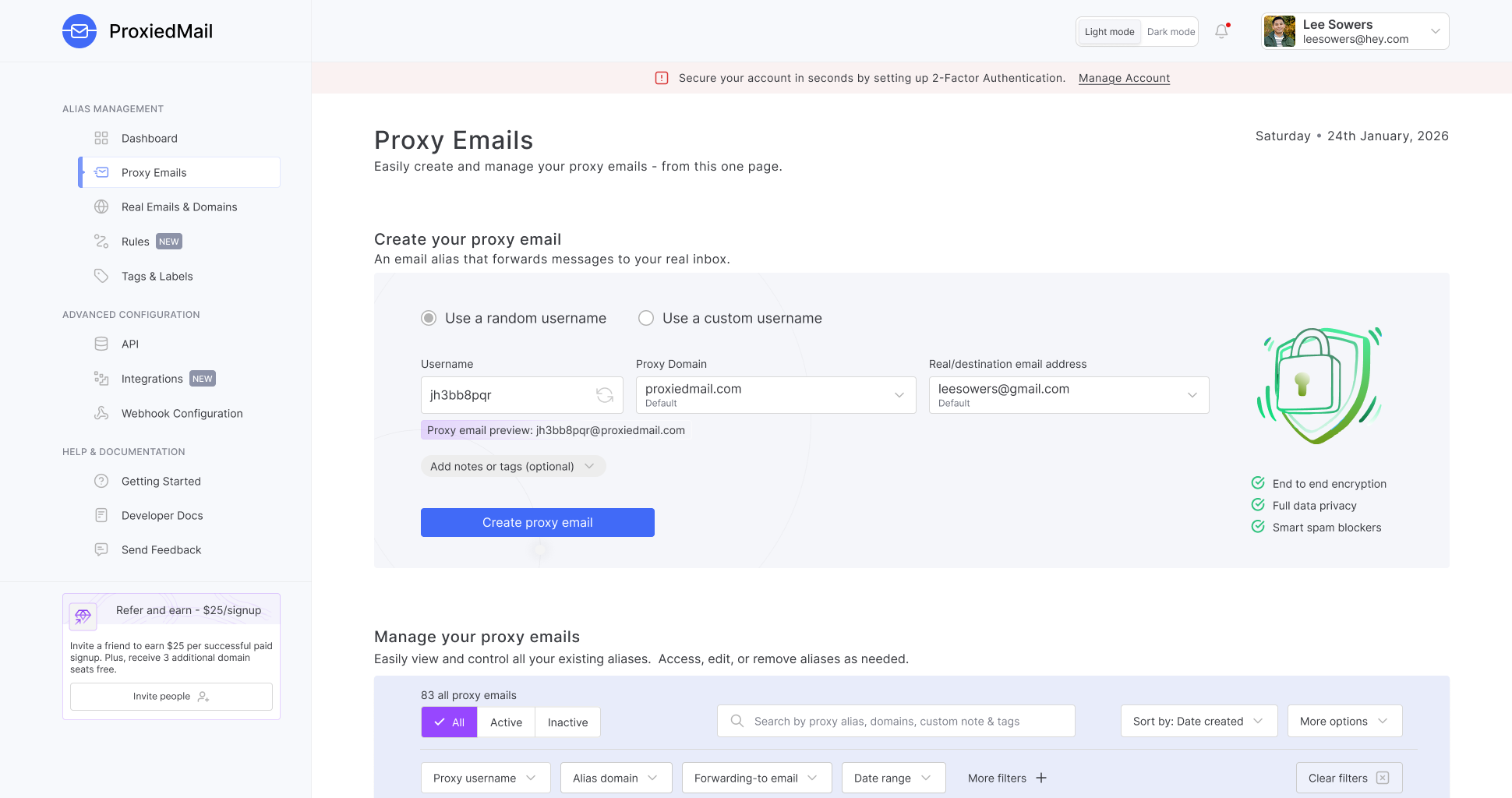
2. The Proxy Emails page: A dedicated workspace for creation of aliases, granular management, featuring advanced filtering and expanded card states.
The Result: This separation should reduce the time-to-task for frequent users and provide the necessary room for the management table to scale as the user’s data grows over time.
This is because, separating the dashboard from the management views respects the user’s intent: sometimes they just need a quick alias, while other times they need to manage their settings.
- Introducing a brand new dashboard

The new dashboard design prioritizes immediate utility through a clear visual hierarchy.
1. The single-click workflow

To solve the time-to-task issue, I introduced a primary action area above the fold.
• A prominent “Create a proxy email” button allows users to generate an alias immediately.
• The alias appears in a ready-to-copy field, eliminating the need to navigate to a different area of the app, for a simple task.

2. Recent Activity

Instead of a wall of text, the new dashboard uses activity blocks to provide helpful context:
• By displaying Recently Created, Forwarded, and Blocked aliases, users get an immediate snapshot of their privacy status.
• Including a “Copy” button directly on the activity feed helps users grab a recently used alias in an instant.
• The Favorites block ensures that high-priority aliases (like those used for banking or primary socials) are never more than a glance away.
3. Data Visualization

The Usage Summary section provides a sense of value. By quantifying Total Aliases, Custom Domains, and Blocked Emails, the UI reinforces the app’s core benefit: saving the user from spam and protecting their identity.
4. Feature Discovery

Rather than cluttering the top of the page with instructions, I moved advanced features like Rules and Integrations to a dedicated section. This ensures the UI stays clean for beginners while offering a clear path to power user for advanced settings and workflows.
Feature | Old design | Redesign |
|---|---|---|
First Impression | Informational, admin alerts and tips dominate the view | Task-driven, action-first with stats secondary |
Alias Creation | Manual form pushed below the fold | 1-click generation above the fold |
Navigation | No clear pathing and confusing. Accessing a different page and clicking on dashboard takes the user to the homepage! | Sidebar-driven for easy multitasking |
Data Visibility | Hidden or non-existent | Quantified through "Usage Summary" stats |
2. Creating a Proxy Email
This is the most important part of the app. It is the reason why the app exists.
The following screenshot is how users interact with the old form to create an email alias:

The image shown focuses on creating a proxy email address and consists of three input fields and several action buttons. When I was using the app, I came across several usability and clarity issues:
1. Proxy address field and “Generate” button
The proxy address field contains an embedded “Generate” button, which creates ambiguity. It is unclear whether the field is pre-filled with a placeholder value or an actual address, and if so, what role the “Generate” action plays.
From a user’s perspective, it is not immediately clear what clicking “Generate” will do or why it is necessary if a value already appears in the field. This is aggravated by the fact that there is a blinking cursor already in the field, which makes it seem that one can type a username.
While the button generates a random string for the proxy address, this is not communicated clearly, resulting in confusion and increased mental effort.
2. Domain selection and default settings
The domain selector defaults to proxiedmail.net. However, if a user wants to change the default domain, they must navigate to a separate area of the application, disrupting the current workflow.
Additionally, the domain dropdown mixes system-generated domains and user’s custom domains without any visual distinction or labelling:

This may cause the users unintentionally selecting the wrong domain, particularly in scenarios where custom domains are critical.
3. “Enter your real email” field
The “Enter your real email” field suffers from a similar issue related to defaults. If users want to set a default destination email address, they must again leave the current screen and adjust settings elsewhere in the application. This breaks task continuity and introduces unnecessary friction during what should be a straightforward creation flow.
4. Visual inconsistency of the “Create” button
The “Create” button differs significantly in shape and styling from the surrounding input fields. While the input fields are rectangular with rounded corners, the button uses a distinct shape that visually separates it from the rest of the form. This inconsistency weakens visual hierarchy and makes the primary action feel disconnected from the inputs that come before it.
5. “Reverse Lookup” button placement and clarity
The “Reverse lookup” button, positioned above the “Create” button, appears visually disconnected from the rest of the interface. It competes with the primary CTA and it is unclear to the user whether it is a secondary action or a different workflow altogether.
More importantly, there is no contextual explanation or affordance indicating what the action does or when it should be used. As a result, users may overlook it entirely or hesitate to interact with it due to uncertainty.
6. No preview of the final result
Users can’t see the full proxy email before creating it. The proxy email is a combination of: Proxy address + domain
Yet users never see the final output explicitly. Without a preview, the user is doing mental assembly: Proxy address + domain = ?
Proxy emails are shared with other people, saved in external systems and hard or annoying to change later. Without a preview, users commonly forget which domain is selected, assume the default is something else or miss a typo in the proxy address.
7. No option to add any notes while creating an alias
In the current design, users cannot add notes or tags while creating an alias. This makes it harder for them to remember where or why the alias will be used later. Many users rely on short notes for context, and the lack of this feature results in a less effective and suboptimal user experience
These mistakes are high-impact but easy to prevent.
Proposed idea:
To resolve the UX issues outlined above, I redesigned the form to improve clarity and introduce a few thoughtful enhancements that make creating an alias faster and more intuitive.
1. Reducing decision fatigue
Previously, users had to manually generate a proxy username, requiring at least one additional click:

In the redesigned experience, a randomly generated username is pre-filled by default for users who do not require a custom option. This eliminates the need for a separate ‘Generate’ button-click, saving a step in the workflow:

In the earlier design, the same input field displayed a blinking cursor next to the ‘Generate’ chip, which created a confusing interaction pattern.

To address this, the redesign introduces two radio button options: one for generating a random username and another for creating a custom username. The random username option is selected by default.

When users choose to create a custom username, the input field updates to allow manual entry. A blinking cursor appears to clearly indicate that the field is editable, providing a stronger affordance for typing.

UX Decision: Pre-generating a unique username provides a zero-click path to creation, while still offering a clear, intentional option for users who want to create a custom username.
2. Streamlining the Domain Selection Workflow

In the original design, managing default domains felt like a separate and disconnected task. The redesign integrates this directly into the domain dropdown. Users can instantly select a domain and make it default for future use-case, without leaving the page and breaking their workflow.
System-generated domains and custom domains are also now visually distinct, making it easier for users to quickly scan and select the right option.
Furthermore, the redesign includes a checkmark against the current ‘in-use’ domain so that the user is visually aware of the remainder of the domains they can choose from.
UX decision: Combining system and custom domains – and allowing users to set a default – eliminates repetitive selections and keeps users focused on the primary task without leaving the flow.
3. Improving visual inconsistencies

The CTA button now matches the input field’s design language, sharing the same height, padding, and border radius. This overall creates a more cohesive and structured layout.
I decided to remove the ‘Reverse Lookup’ button from the form and relocate it to the individual proxy email card. This keeps the form clean and reduces visual noise, while ensuring the primary CTA deservedly receives full attention.
UX decision: Visual consistency reduces cognitive friction by making related elements feel part of a single, unified action. Removing secondary actions from the form helps establish hierarchy and directs user focus toward the primary task – creating a proxy email.
4. Live preview and final alias

One of the most effective additions is the live email preview (“Your proxy email will be:…”) located directly under the username field. This helps users to preview a proxy email before generating it.
Additionally, giving users the ability to copy the proxy email immediately after it is generated removes the need to scroll down the page to find it in a table. This saves time and reduces friction, especially for users creating multiple proxy emails in quick succession.
UX Decision: Live preview provides immediate feedback. Users don’t have to mentally concatenate the username and domain; they see exactly what they will be copy-pasting into a third-party site.
Allowing users to copy the proxy emails once generated, keeps the action close to the point of creation and supports faster workflows.
5. Optional metadata

The addition of Notes and Tags (hidden behind an optional dropdown) is a valuable addition for users to stay organized. This solves the forgotten alias problem – where users look at a list of 50 emails a year later and can’t remember which one was for their bank versus a random newsletter.
UX Decision: Keeping metadata optional preserves a clean interface while still supporting advanced organization needs.
Feature | Old design | Redesign |
|---|---|---|
Above the Fold | Hidden or competing with 150 words of instructional text | Primary focus: The creation tool is the undisputed hero of the page |
Creation Logic | Single-path: Forced manual entry for every alias, regardless of intent | Dual-path: 1-click for speed; or custom if required |
User Entry | Required user to click to generate a username from scratch | Auto-generated: Unique username pre-filled on load (zero cognitive load) |
Visual Feedback | Static fields; user must mentally combine username and domain | Live preview: Real-time display of the final email address as it's being configured |
Default domain selection | Break workflow to set default elsewhere | Integrated defaults: Custom domains built into the dropdown with "Set as Default" logic |
Organization | Description field only (possible to fill it only after alias creation) | Rich metadata: Dedicated fields for Notes and Tags, before generating an alias |
3. The Proxy Email Management Table
This section deals with the cards that get generated for each proxy email. Here’s the screenshot of the current table design:

An audit of the current table confirms a major breakdown in visual grouping and information architecture. The table suffers immensely with visual noise, redundancy and lack of basic features. There are some critical UX pain-points that I’ve identified in the audit below.
1) In its current form, the table makes it difficult to visually distinguish where one card begins and another ends, as the rows are placed too close together vertically and lack clear separation. I’ve included a screenshot above from the live application to illustrate the issue.
Also, the table headers are neither sticky nor the card has column headings displayed, which means that once the user scrolls down, each individual card has information displayed that a user now must actively remember what column it relates to.

2) The table hierarchy does not align with user priorities. Columns such as Real Email and Proxy Email are ordered in a way that feels counterintuitive.

Placing the real email first is a system-centric design rather than a user-centric one. The system cares about where it’s sending the mail; the user cares about which proxy email they just gave to a specific website. Placing the real email first gives prominence to information that is typically less important to the user.
3) The search functionality is also limited. Users can only perform basic searches, with no options for filtering or sorting, which reduces its usefulness when managing a large number of aliases.
4) Floating text

The “Protection Enabled” badge and the “Description” text are floating in the middle of white space. Because they aren’t clearly anchored to the header row above them, the user’s eye has to work hard to connect that description to the correct email address. This just adds to the cognitive load on the user who is already struggling with the visual inconsistencies.
Additionally, if the app’s entire purpose is protection, having a “Protection Enabled” badge on every single row is repetitive. It simply creates ink-waste that distracts a user’s focus. The copy too falls short in answering: protection from what?
The “More” action on the right also appears awkwardly positioned. These placements weaken visual hierarchy and make the interface feel less structured and harder to scan.
5) Delete action

The delete icon is sitting right next to the status toggle with no visual separation. This increases the risk of a slip, where a user intends to simply disable a proxy email but accidentally deletes it forever.
I wanted to consciously move away from a system-focused design to a more user-focused experience that’ll make searching proxy emails quick and efficient. Besides fixing the issues mentioned earlier, the new redesign also introduces features for a better user experience.
- The Table Redesign
1) Robust table headers

The original table offered almost no way to find a specific alias in a large list. I wanted to ensure that a user has sufficient search, filter and sorting options to easily find the alias they are looking for.
The redesign introduces a multi-layered filtering system:
a) Quick toggles: The All / Active / Inactive segment allows for instant broad filtering.
b) Granular control: By adding specific filters for proxy username (especially if they are searching for custom usernames), domain, forwarding email, and date range – the app is scalable for power users who might have hundreds of aliases.
c) Search context: The search bar explicitly tells the user what they can search for (aliases, domains, notes, tags), which reduces guesswork.
2) Restoring visual hierarchy

a) The card model: By putting each alias in a distinct white card against a soft grey background, I’ve made it immediately clear where one alias’s data ends and the next begins.
Furthermore, each card has its own column heading, making scanning the data easier than retaining it in memory.
b) Status clarity: Replacing a simple toggle with a clear Active/Inactive badge makes the state of the email scannable at a glance. I believe it also makes more sense to label it as ‘Active’ instead of ‘Enabled’ as a user may get confused as to what specific feature of the card has been enabled.
c) Enhancement: Added a ‘favourite’ feature that enables users to favourite a certain alias, that they can filter quickly later. The most recent favourites also show up on the dashboard itself for quick access.
d) Removed the awkwardly positioned ‘More’ action link. The card now expands when clicked anywhere and the down-caret provides the affordance required. Image attached
3) Prioritizing the email hierarchy

Since the proxy email is the primary data users create and interact with, it would be more effective to surface it first. Placing the proxy email first recognizes the user’s intent. They are looking for the “disguise” they created, not the destination address they already know.
4) Removing UI elements
I removed the ‘Protection Enabled’ badge completely as it didn’t offer any real value, and was simply distracting to look at. The users have already signed-up for the app trusting its in-built privacy and protection of their identities.
The ‘Description’ is now redesigned to be Custom Note. A user can add a note while creating a proxy email, or once the email is generated (by expanding the card and adding it therein – more of than later below)
5) Progressive Disclosure
The original UI was cluttered with links (such as ‘More’) and awkwardly placed delete icons. The redesign uses progressive disclosure for:
a) Primary actions only: The most frequent actions (such as copy, favourite) visible.


b) Secondary actions: Such as logs, export, and feedback are tucked away in the kebab menu.

c) Destructive action: The delete button is now placed inside the card. This prevents accidental deletions and keeps the interface clean.
4. The Proxy Email Card
Let’s move over to the expanded card for a singular proxy email. Each proxy email generated, gets its own card with relevant information about that proxy email. Before we dive into the redesign, let’s take a closer look at the expanded card’s old design and do a UX audit.

For the sake of clarity, I’m dividing the issues into 3 parts:
a) Issues related to the ‘Store Password’ zone
b) Issues related to the bottom zone (aka – the footer)
c) Miscellaneous issues
Here are the main UX red flags I’ve identified for each zone:
a) Issues related to the ‘Store Password’ zone

• Non-standard layout: There are a few critical issues with this layout. The split-box design (‘Store password’ vs. ‘Used on’) creates a disconnect in the user’s scanning path. Although they both belong to the same context (website login and password), the user’s eyes have to dart between the two boxes to make a relation.
What’s worse is that a website is not visually tied to a password, so if you have 3 websites listed and just 1 password, you’re left baffled as to which website the password belongs to.
• Because they’re both big boxes, they visually outweigh the more important elements of the card – such as the usage and status. These metrics are more important to the user, rather the website the alias is used on.
• The boxes imply equal importance, but they aren’t. One is for action (store/generate password), while the other is for the context (used on). Putting them side-by-side gives the impression that you should decide about these two right away.
• Competing call-to-actions (CTAs): The ‘Store password’ button and ‘+ Add/edit websites’ link are visually disconnected. One is a pill-shaped button, the other is a text link, yet they are part of the same login context.
• It breaks the mental model of being an email alias. When users look at an alias, they are looking at information such as: What alias is this? It is active/inactive? Is it receiving spam etc? With a giant password box, they now have a mental switch about looking at a password manager instead. So even if the feature is useful, it is disproportionately attracting attention visually.
b) Issues related to the bottom zone (aka – the footer)

This one is equally fun. The UX issues here are – let’s just say – a bit too many:
• No visual hierarchy: The AI/Bots button, ‘Created at’ date, and ‘Webhook’ link are all left-aligned but vary wildly in font size and style. It looks like a footer that is pasted, rather than useful metadata.
Users cannot tell what matters to them precisely, what’s meta or debug.
• The AI/Bot button looks like a tag, or a filter or a clickable button. It is a bit hard to understand which one is it. It is also detached from any explanation as to what it does. Users may not click it at all, thereby missing any value it brings.
• Developer-only: Including ‘Set up/manage webhook (developer only)’ in the main view for a general user is distracting. It’s a power-user feature that should be hidden in ‘Settings’ or a dedicated developer area of the app. General users may click it and feel lost, only to increase support burden and leave with a feeling that the app is a misfit for them.
• Misplaced core action: The ‘Send/Contacts’ button – a major feature, is tucked away in the bottom right corner with a tiny icon, making it almost invisible compared to the giant empty white boxes in the center.
It also doesn’t mean much upfront – what will clicking the button do? Will I be able to send an email directly to my contacts from the app itself? Will I be able to send/share this proxy email to my contacts after clicking the button? Who are the contacts? Where is the app pulling my contacts from? It is super ambiguous and raises a lot of suspicion. Not a good look for a privacy app!
Due to all the buttons and links, the eye jumps around randomly, the scanning is slow and nothing feels centred conceptually.
c) Miscellaneous issues
c.1) When looking at the card as a whole, these are all the actions/features within one card:
• Copy proxy email
• Toggle enabled
• Delete
• Update description
• Store password
• Add/edit websites
• AI/Bots
• Webhook setup
• Add new real address
• Send/Contacts
• Expand/Collapse (“More”)
The problem is not the number of features, but that there is no primary action, no grouping, no progressive disclosure that actually reduces complexity.
“More” expands into…even more.
This is a classic example of a control panel that is anti-pattern.
c.2) Copy is inconsistent and sometimes misleading
Here are examples as to why the copy is ambiguous too:
“Protection Enabled” – but protection from what?
“Store/generate password for your email” – is it for the proxy or the real email? This is unclear.
“Need to send an email?” – it feels like a disconnected CTA, not a proxy-email action.
The impact of copy inconsistencies is that users mistrust the system because their anxieties around their privacy aren’t being pacified. Privacy apps must be adequately precise with language and the current design doesn’t meet the standard.
C.3) Emotional UX problem
This is subtle but important. For a privacy/security product, this card feels:
• Busy
• Noisy
• Overloaded
• Confusing
That creates anxiety.
Users should feel that they understand what is being displayed at a glance. That they are in control of what they created. However, what they feel is “If I click the wrong thing, I might break something.”
This leaves users feeling a little unsafe and will start looking for other apps if the UX doesn’t improve.
Design iteration 1:
The first step was moving away from the system-first to a user-first design. To drive home this point, I made a few but important changes to the copy of the column headings and the field itself.

A) The old design has ‘Real Email’ as the heading of the real email address. In the redesign, I changed it to ‘Forwarding to’ for 3 reasons:
a1) It describes the behaviour: Users don’t think a certain proxy email is linked to a certain real email. In fact, they think: Where do these emails go?
‘Forwarding to’ answers that user’s question in the head.
a2) It befits the proxy email mental model better: A proxy email is basically an inbox rule with an alias. ‘Forwarding to’ reinforces that the proxy is just a transitional pipe connecting third-party sites to your real email.
a3) The field now supports changing of the forwarding email too.

This means that once the proxy email is generated, users are not locked in to the same email address. They can easily route any forthcoming emails to a new forwarding address.
B) I also changed the copy ‘Received emails’ to ‘Emails forwarded’ – again, because ‘Received emails’ feels lazy and passive. Users may think “Good, 3 emails received but has the app forwarded to my real email address?”

‘Emails forwarded’ signifies the system has already done its intended work. It received emails from another website, and has already forwarded them to your real email address. That is what reassures the user.
Design Iteration 2:

Initially I had a toggle button to denote the status of the proxy email. An active proxy email had the toggle ‘on’, and users may click on it to shut it off (essentially deactivating the proxy email)
However, this felt risky as a user may unintentionally click on the toggle without realizing, thereby disabling it; and wonder why they aren’t receiving emails in their inbox.
To address this, I redesigned the status of the proxy as a label chip that a user intentionally controls by expanding the card first and then deactivating the toggle inside. Supporting helper text beneath the toggle ensures users clearly understand the action they are taking, eliminating unexpected surprises.

Design iteration 3:
Recall how users had the option to add meta-data like a note or tags, while they were creating an alias (you can view that here)?
But what if they created an alias in a hurry, and now want to update it with a memorable note? I wanted to provide them a place to do so in the generated card. This is the first of its design iteration – a Custom Note label placed below the proxy email:

However, this design doesn’t help much. It only says that a note exists (indicated with a green dot) but doesn’t reveal what the note says. To view the note itself, the user has to expand the card fully simply to read what it says.
I therefore decided to add a little truncated text right below the proxy email.

This helps a lot, but the custom note label looks redundant. The user can already see that a custom note is added (as he is reading the truncated text). I therefore decided to remove the custom note label entirely and let the truncated text do the heavy lifting.

For proxy emails that don’t have a customized note, the text simply reads ‘Add a custom note’ – providing users a visual cue that the proxy email doesn’t have any note attached and they can add a note to the card if they want to. This is how it looks by default:

Tags:
For the tags, I realized that adding a tag label under the note label (when the card is at rest (i.e. not expanded) creates a visual imbalance.

I therefore decided to not include any indication of adding a tag, because most users add a note as that is the natural way of remembering things. Once the card is expanded, they can add tags which will still show up on the card at rest.
In the expanded version of the card, the user can add both custom note and tags, which will automatically populate the card at rest – so they can view the truncated note (that provides cues as to what the proxy email is about) and the tags too.

Design iteration 4:
The old design has a ‘Created at’ date placed at the bottom of the card.
This is definitely an important piece of information for the user, as it helps them recollect a proxy email when searching for it later. However, is that the only information that is helpful? I think there are some more stats that are equally helpful to make proxy emails useful.
I gathered a list of relevant meta-data such as:
Last email received
Category
Most recent sender
Total emails blocked
Domain reputation score
Email created on
Top sending domains
Spam flagged
First email received
Last updated
Average emails per week
Last block event
Time since last activity
Last disabled
Total emails blocked
Of these, I narrowed down to the most relevant ones:
a) Email created on:
Useful for tracking how long an alias has existed. Also helps identify legacy aliases that might no longer be needed.
b) Last updated:
To understand if any settings related to the alias were last changed (e.g. forwarding address, status, notes). It helps to audit the alias, and to check if something was altered recently (e.g. in case of compromise).
c) Last email received:
Timestamp of the most recent email received on that alias. Useful for cleanup – e.g. no emails for 6+ months, therefore qualifies for deletion. Also, helpful in spotting aliases that may have become targets for spam.
d) Total emails blocked:
The total number of emails that have been blocked for this alias (due to manual blocks, rules etc.) It helps quantify how much unwanted mail an alias has attracted. Also, useful for identifying aliases that are being abused or overexposed.
e) Spam flagged:
The number of emails received by this alias that were flagged as spam (either automatically by the system or manually by the user). It helps distinguish between legitimate usage and spam-heavy aliases.
Also, helps indicate whether an alias has leaked or been shared beyond its intended purpose (such as 3rd party sites selling user data).
f) Last disabled:
Helps answer the question: why am I not receiving emails from the sender? Also helps in identifying aliases that have been disabled too long ago and require permanent deletion from the system.
After updating the text to be shorter, I had the final meta-data I wanted for each proxy:
Created on
Last updated
Last email received
Emails blocked
Spam flagged
Last disabled

By showing these data points, I provide users with a tangible proof of the app’s value – and that is to protect their inbox.
Design iteration 5:
The split-box design for ‘Store Password’ and ‘Used On’ is not great design. Not only having two separate boxes unnecessary, but they also occupy wasteful space while being visually loud without a good reason.
This is the old design:
I decided to combine both of them in a more manageable tabular format.

This works well because it sets the right mental model. Instead of just ‘Used on’, the text now reads ‘Alias used on’ thereby setting the correct context and removing any ambiguity. It puts the focus on the alias – which is the primary objective of the tool.
The tabular format is better (instead of the split-card design) because the data is now grouped and contextualized – where’s the alias used on (i.e. which website) and if there’s any password generated and stored (in the password column). The table makes an obvious relationship between website and stored password. This makes scanning easy and scales naturally.
The password is now demoted-secondary visually, which is good. It doesn’t look like a password-manager anymore, it isn’t screaming for attention and the small action icons are contextual, give control over to the user, without getting in the way.
To reduce confusion, I renamed the column heading from ‘Password’ to ‘Website account password’, clarifying that the stored password belongs to the external website rather than the ProxiedMail app itself.
Design iteration 6:
In this iteration, I turn my attention to the action buttons at the bottom of the expanded card. For reference, the current state is shown below:
a) As a redesign, I ensured clear separation between action and state. Actions are now on the left, state is on the right.

Here are the action buttons:
Create reverse proxy
Create AI agent
Delete proxy email
The state is the ‘Proxy status’ toggle, to show whether the proxy is in the Active or Inactive state.
b) The meta-data is no longer polluting the action space. The ‘Created at’ meta-data is now part of the row that sits above, with other related meta-data.
Users instantly know what is informational vs interactive. Scanning is faster, and the UI feels calmer and more intentional.
c) The ‘Send/Contacts’ button from the previous design has been relabelled as ‘Create reverse proxy’ to accurately reflect its function.

Creating a reverse proxy generates an additional proxy email linked to the primary proxy. This reverse proxy can be used to initiate email conversations directly from a personal email client (such as Gmail), and ensures that the user’s real email address remains hidden while only the reverse proxy address is visible to recipients.
Because this action represents both the core use case and a natural progression of the proxy email workflow, it is emphasized as the primary CTA within the expanded card.
The ‘AI/Bot’ button has been renamed to ‘Create AI agent’ to more accurately reflect its purpose:

Selecting this action creates an AI agent that responds to emails routed through the proxy, on the user’s behalf. The button is styled with lower visual emphasis, indicating its availability without competing with the primary call to action.
Both actions are clearly labelled and supported by a “What’s this?” tooltip, providing additional context for users who want to understand their functionality in more detail.
Non-technical users won’t panic, while advanced users can still find these power features easily.
d) The “Delete proxy email” button is clearly separated and properly styled destructive. It uses a distinct red icon, helping prevent accidental data loss.

It isn’t visually competing with the main CTA, and readily available for users who want to delete a proxy email.
The footer finally has a clear hierarchy visually and semantically.
Primary action: Create reverse proxy (blue, far left)
Secondary actions: AI agent, Delete
Global state: Status toggle (far right)
This redesign is meaningfully better UX.
It is cleaner, calmer, more scalable, more respectful of user intent, more aligned with modern product patterns.
Most importantly, it no longer feels like everything’s dumped into one footer, but rather feels like a well-structured control panel for a single proxy email.
Results: Achieving design objectives
Feature | Old design | Redesign |
|---|---|---|
Visual Structure | Flat rows with no clear boundaries; floating badges create visual noise | Card-based UI: Each alias is encapsulated in a distinct unit using the Gestalt Principle of Enclosure |
Information Priority | System-centric: Puts "Real email" first, forcing the user to scan further for the alias | User-centric: Prioritizes "Proxy email" as the anchor point for the eye |
Bulk Management | Non-existent; no way to handle 100+ aliases efficiently | Segmentation: Quick-toggle filters for All, Active, and Inactive states |
Data Discovery | Simple search bar with limited parameters | Advanced filtering and sorting: Granular search by username, domain, note, tags, and date range |
Safety Mechanisms | High risk of slips; 'Delete icon' is tiny and adjacent to frequent toggles | Progressive disclosure: Destructive and advanced actions are tucked into an expanded view or a kebab menu |
Contextual Depth | Surface-level; requires navigating away to see logs or detailed meta-data | Inline expansion: Rich data (blocked counts, last received, site logins) is available without leaving the page |
1) Reduced time-to-task: The redesign significantly lowers the interaction cost of the app by providing specialized workflows for different levels of user intent.
Instant ‘1-click’ generation on the Dashboard
In the legacy design, creating an alias was a manual process hidden below a wall of text. The new dashboard transforms this into a zero-configuration experience:
A dedicated generation tool is placed at the very top of the dashboard. The system automatically generates a unique, random username and selects the proxiedmail.com domain.
For the majority of users who just need an alias immediately, the task is reduced to a single click on the “Create a proxy email” button. There is no need to type or think about a username, moving the user from logging in the app to having a proxy email created, in seconds.
Guided configuration on the Proxy Emails page
While the Dashboard is built for speed, the Proxy Emails page is built for precision. Even in this more complex environment, time-to-task is reduced through clear visual distinction:
The UI uses distinct radio button controls to switch between Random and Custom usernames.
Random Mode: Keeps the input field pre-filled and “locked”, allowing users to rapidly generate multiple aliases for different sites without brainstorming names.
Custom Mode: Opens the input field for specific branding or recognizable aliases (e.g. shopping etc)
Live Preview feedback: As users toggle between these modes or type, a live preview of the full email address updates in real-time. This eliminates any mental effort to put the username and domain together, thereby saving a bit of time too.
2) Restoring visual order and consistency
The redesign replaced a fragmented, system-first aesthetic with a cohesive design language that feels intentional and trustworthy.
The legacy UI felt like a collection of separate features rather than a single product. By standardizing the look-and-feel – using a consistent color palette, corner radii, and spacing logic etc, the app now feels like a professional-grade tool. This consistency builds user trust, which is critical for a privacy-focused product.
3) Scalable alias management
This redesign highlights how the app now supports a power user who might manage hundreds of aliases, rather than just 5 or 10.
The two-page split design ensures that as ProxiedMail adds more features (like the AI Agent or Reverse Proxy), there is a dedicated home for them that doesn’t clutter the primary dashboard.
By moving advance metadata (blocked counts, spam flags etc) into an expanded card state, the interface remains clean for daily use while remaining powerful for deep maintenance.
The introduction of multi-parameter filtering (by username, domain, tag, or date) and sorting capabilities, transformed the table from a static list into a searchable database.
The design decisions helps in scalability as the user generates and maintains their growing list of proxy emails.
Conclusion: Designing for privacy at scale
The redesign of ProxiedMail successfully addressed the core frustration of cognitive friction and disorganization. By moving away from an incredibly cluttered, single catch-all page to a purpose-driven, two-page architecture, the app can now scale alongside its users.
The introduction of dual-path creation (random and custom usernames) allows for both speed and precision, while the card-based management system transforms a messy list into an actionable dashboard. Ultimately, these changes didn’t just pretty-up the interface; they reinforced the product’s value proposition by making privacy management feel intuitive and effortless.