When applying to register oneself for the 2027 Census, you are first greeted by the following page:
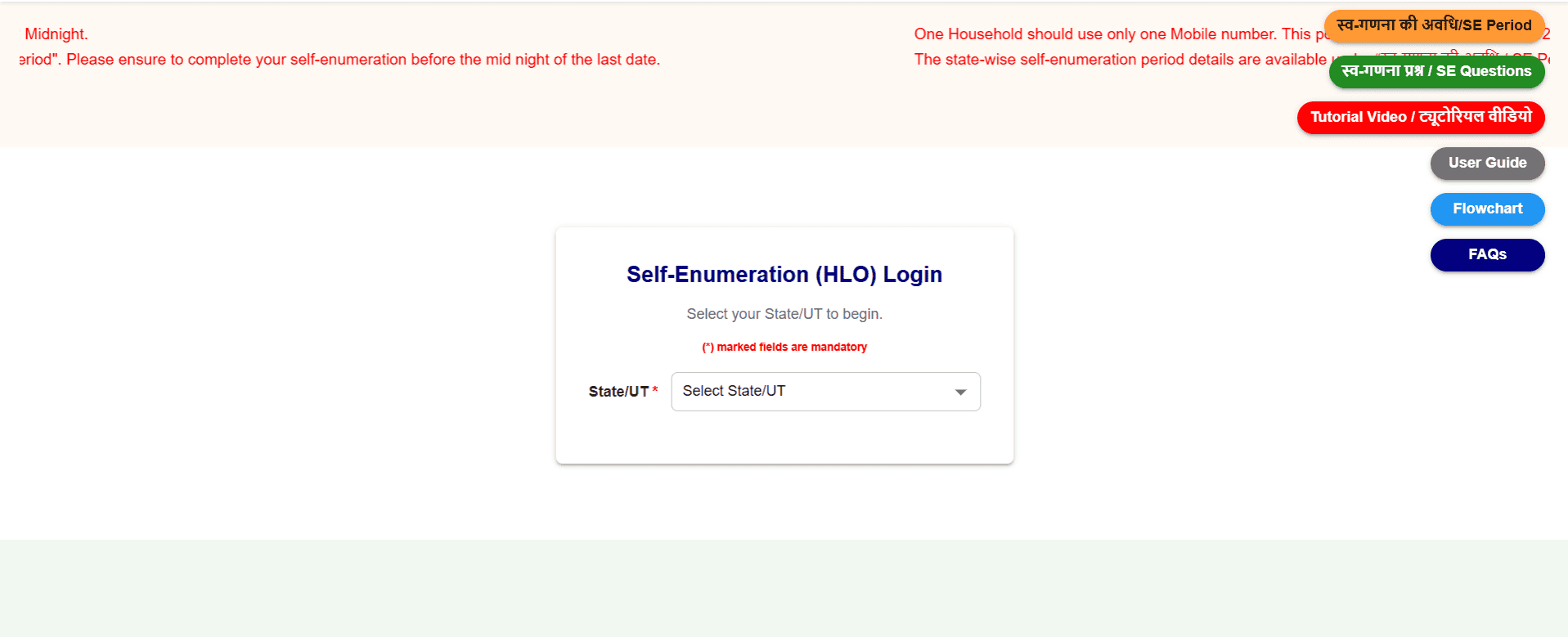
Needless to say, there’s a lot going on this one page:
- You first notice the scrolling red text as a banner. It gets incredibly difficult to read as the text keeps moving. Your mind sees half the text on the right, while the remain half on the left that has scrolled past already.
- There are a plethora of very colourful buttons on the right – SE Period, SE Questions, Tutorial Video, User Guide, Flowchat and FAQs. Phew!
Those buttons are just in English – a few of them have Marathi (an Indian language spoken in the state of Maharashtra) translation too. Albeit the first two buttons have Marathi-English label, while the other button has an English-Marathi label.The remaining 3 buttons simply do not carry the Marathi equivalent.
Consistency? What’s that?!
- And finally, there’s the beginning of the registration form. With a lone dropdown field to select your state to begin with. And the instruction above it says: “(*) marked fields are mandatory.”
I mean – was it really necessary for that instruction to be there at all, considering the only way one could progress was by selecting a state?
Let’s speak about the buttons for a bit.
If you hover on any button, you’re presented with a tooltip:
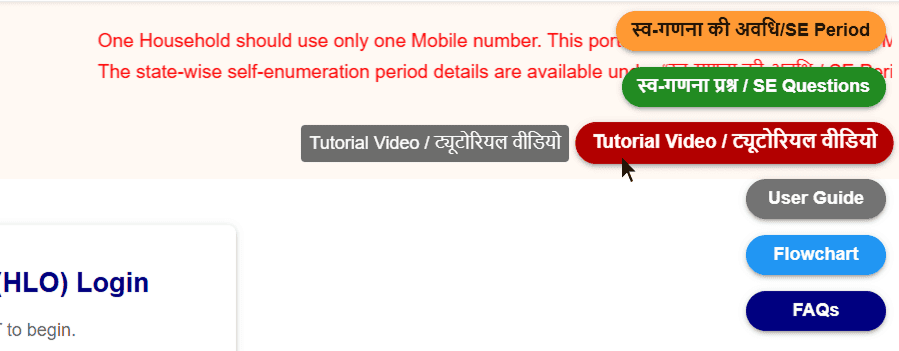
But having this tooltip is not helpful at all – if all you’re displaying is the exact same label as the button you just hovered upon. There’s opportunity lost here to explain the benefit of clicking the button, or explaining what each button does.
Moving on to the dropdown:
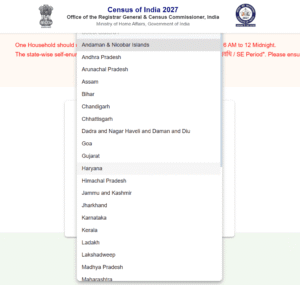
Once you click it, you are then presented a list of all the states – just thrown at your face:
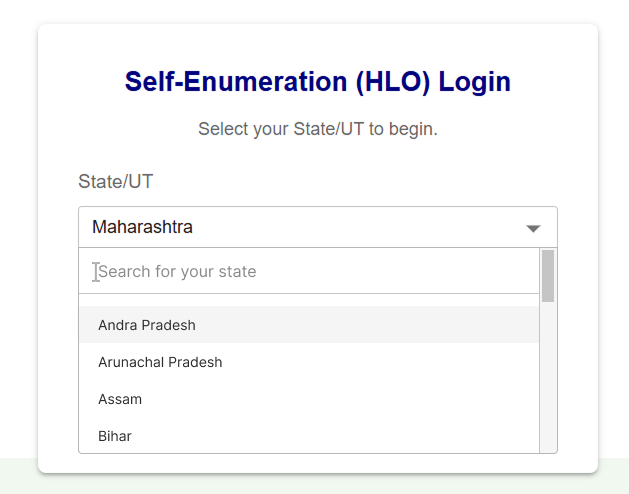
I took the freedom to redesign how this dropdown ought to have looked. With a little bit more design intentionality, and empathy for users to have them type in their respective state instead of scrolling through the very long list to get to the bottom where their state could have been.
Once you select your state, you enter the captcha, then click Verify & Proceed:
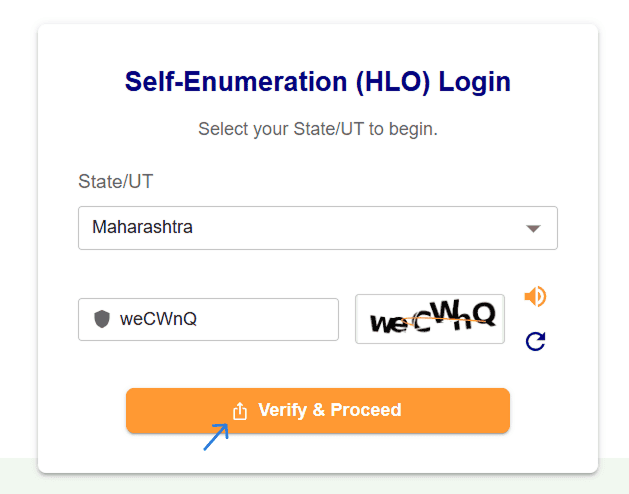
But notice the icon used on the button. This icon generally means to upload something (for example: upload documents in a given form). The usage of this icon is a mismatch given the context here. It would have been perfectly acceptable for the button to have the text alone. Placing the icon meant for upload, could potentially add confusion for some users.
The actual registration form:
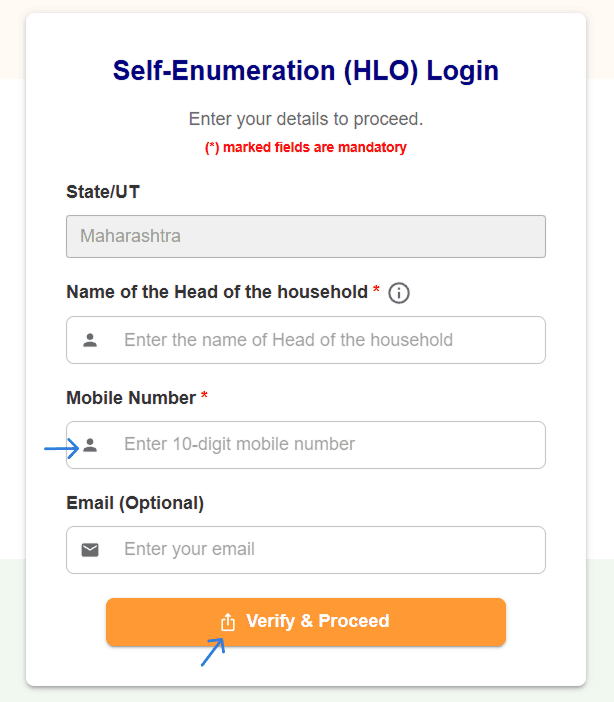
The form is not without its share of issues.
The first field for ‘State/UT’
Is displaying the field here in its disabled state, helpful? I doubt it. The previous form had just one field – the State/UT field as a dropdown. Why not simply direct users to this form that has the State/UT information displayed already? Instead of making it disabled, why not give them the option to choose their state on this form and drop the previous form altogether? That’s one less step for the user in their registration journey.
Even if an extra step was absolutely required for whatever reason, why not provide users an option to change their state/union territory (UT) on this form, if they happened to choose a wrong one in the previous step?
Here’s roughly what it could look like:
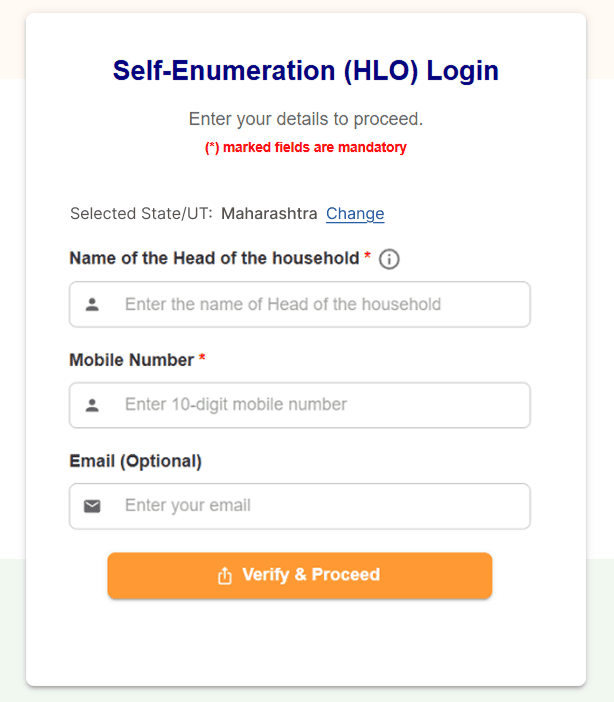
If users do want to change their state, clicking ‘Change’ can reveal a modal with the list of states to choose from.
But we’re not done yet!
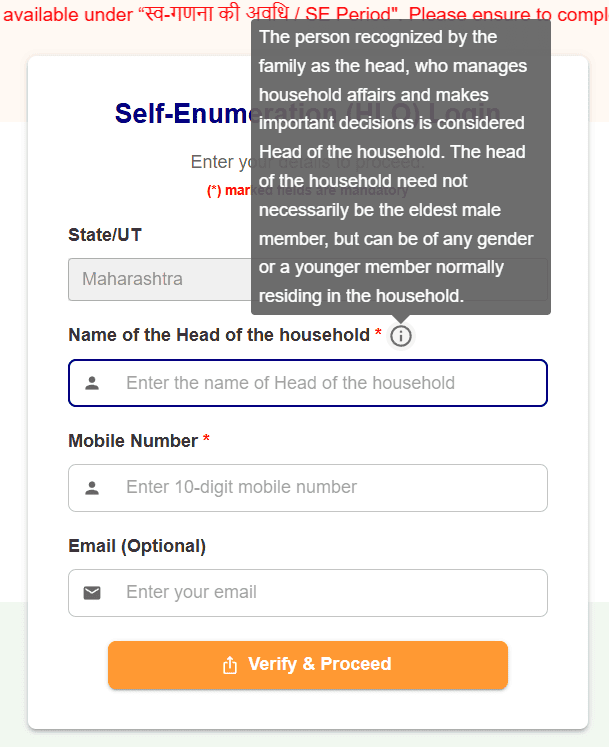
The tooltip next to the ‘Name’ field
Hovering on it will correctly display some relevant information. However, the opacity set on the overlay, makes it very inconvenient to read anything at all. The amount of text to be read, is also a bit too much.
Lastly, the mobile number field
The icon usage is pretty poor. A user icon is understood to indicate name or designation. A user icon is not intended for a field with numeric value. A better icon choice should have been a telephone or a mobile icon.
And of course, we’re still dealing with the upload icon in the primary CTA.